Prevent Slack going idle · Mac & Windows

Prevent Slack going idle

Slack drops your status to away the moment you stop touching your keyboard. This page covers why it happens and how to prevent Slack going idle — from built-in settings to controlled auto clicking. Free download for Mac and Windows.

Official Green Dotter download

Green Dotter is distributed directly from green-dotter.com. This is the official download source for the Green Dotter app. No account, email address or subscription is required.

Free. No account required.Mac and WindowsLocal app

Why does Slack go idle?

Slack shows a presence dot next to your name — a solid green dot when you're active, and a hollow dot when you're away. That dot is set automatically, based on what your device is doing, not on whether you're actually at work.

When Slack sees no activity on your computer for a while, it switches you to away. It does the same when you close the app or lock your screen. Common triggers:

  • Stepping away from your desk for a few minutes
  • Reading or researching without typing
  • Working in another app full-screen
  • Your screen locking after its inactivity timeout
  • Quitting or backgrounding the Slack app

None of these mean you've gone offline — but Slack can only read device activity, so the dot goes hollow anyway.

How Slack decides you are "active"

Slack presence comes down to recent activity on your device and whether the app is open and unlocked.

Activity: keyboard or mouse input keeps you marked active.

App and lock state: closing Slack or locking your machine sets you to away.

Manual availability: you can set yourself to Active, but Slack can revert once your device goes idle or the app closes.

So the most reliable way to prevent Slack going idle is to keep the computer itself genuinely active for as long as you need. Our guide on Slack away and do-not-disturb status covers the settings side in more depth.

Adjusting Slack and system settings

A few built-in options help for short periods.

Set yourself Active: click your profile in Slack and set availability to Active. This holds until Slack detects you've gone idle again.

Set a status: add a status note so colleagues know what to expect, like "Focusing — back at 3pm".

Keep the screen on: stopping your computer sleeping helps, because a locked or sleeping machine reads as away. See keep your computer awake for the settings.

Limitation: manual availability still flips back once your device is idle. For longer stretches you need the machine to stay active on its own.

What a mouse jiggler does

A mouse jiggler keeps a computer looking active by nudging the cursor — just enough that the machine doesn't register as idle. Hardware jigglers are USB devices; software jigglers run as apps. Both do the same thing.

For keeping a Slack dot green, a jiggler usually works. The limitation is control: it moves the pointer but doesn't let you choose where it goes or whether it clicks anything. Fine for a personal device; blunt when you want activity kept to a specific, safe part of the screen.

Preventing Slack idle with Green Dotter

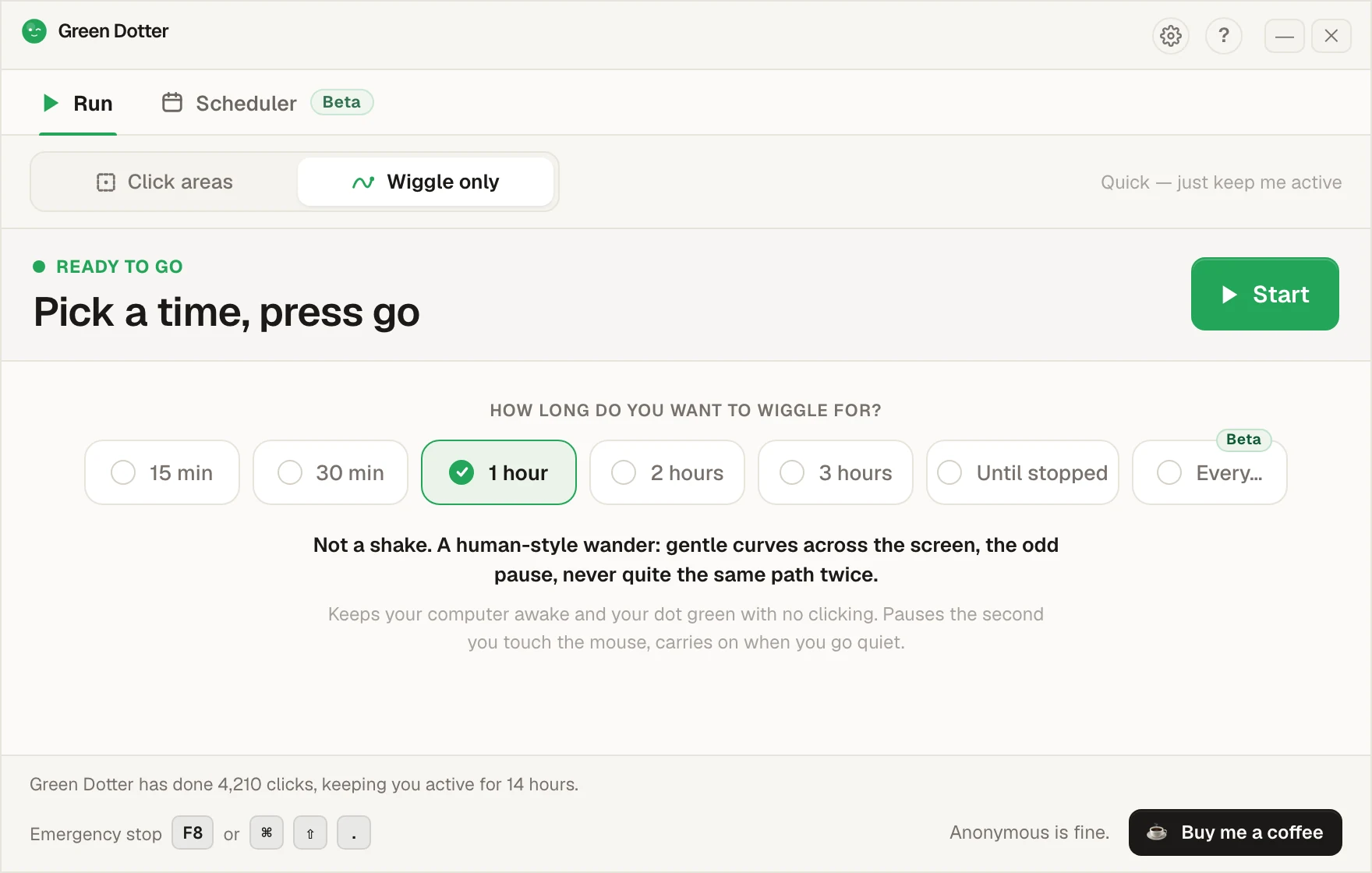
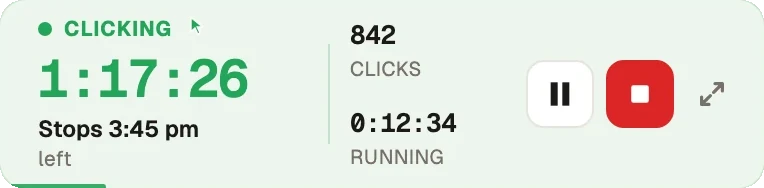
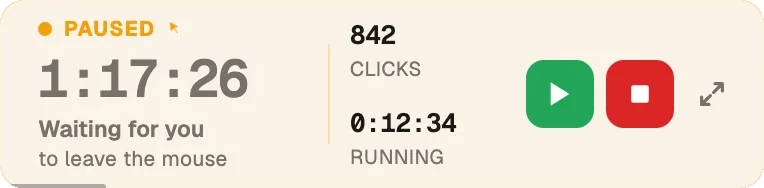
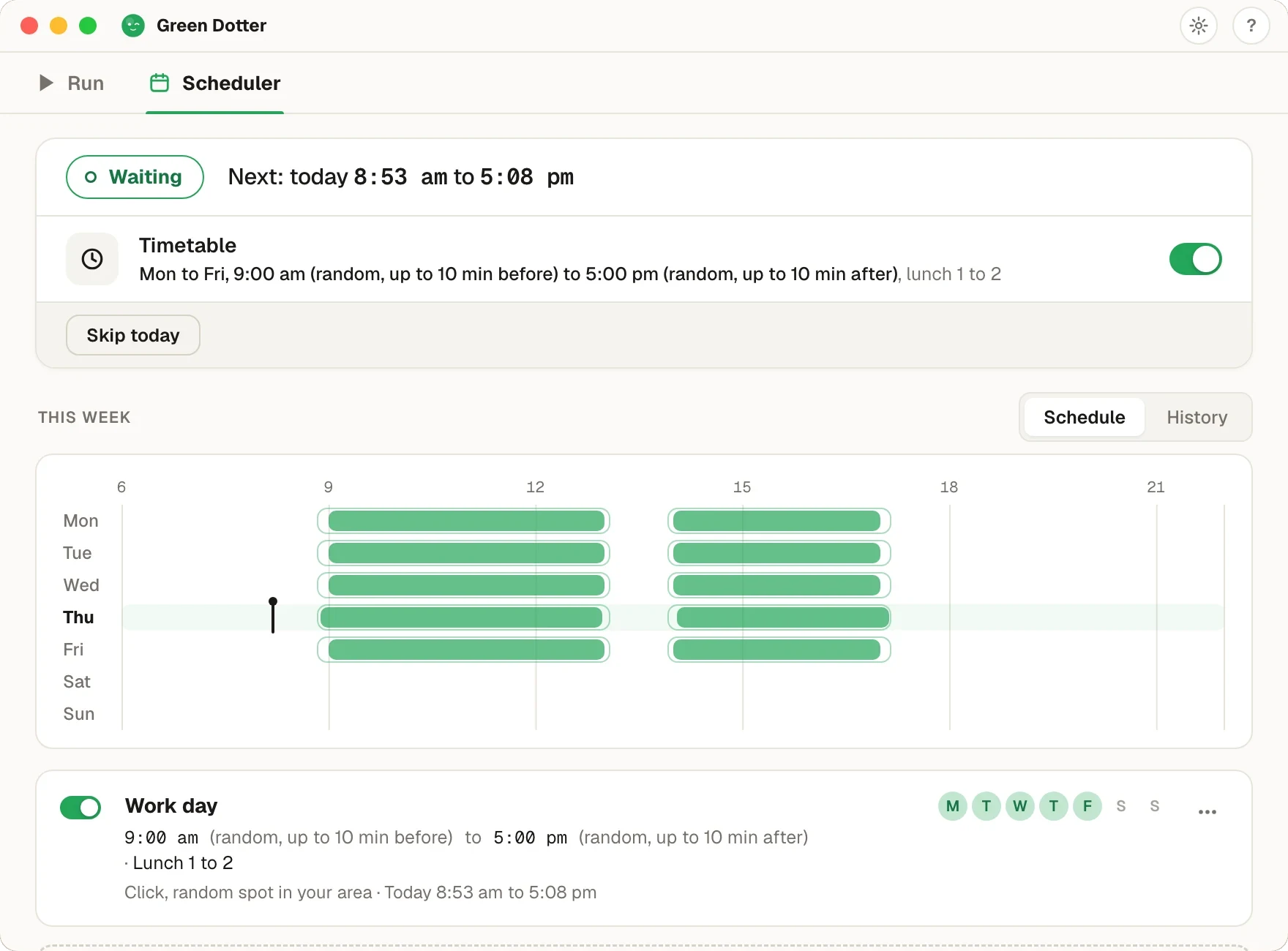
Green Dotter keeps your computer active by clicking inside an area you choose. You pick a safe area of the screen, and Green Dotter clicks inside it on a randomised schedule. When you come back and move the mouse, it pauses automatically and gets out of your way.

That activity is what stops Slack marking you idle. Green Dotter is useful when:

  • You want clicks in a chosen spot, not just random cursor drift
  • You're active on another screen or device and don't want your status to drop
  • You want the tool to step aside the moment you return
  • You prefer randomised timing over a mechanical fixed beat

It's a local app. No account. No cloud. Free. There's more in how to stay active on Slack.

Which option is right for you?

OptionMacWindowsBest for
Manual availability in SlackYesYesShort, planned periods
Keep-awake appYesYesStops sleep, not presence
Mouse jigglerYesYesBasic cursor movement
Green DotterYesYesControlled clicks in a chosen area

If you only need cover for a short break, set yourself Active in Slack. If you want your computer to stay genuinely active across longer stretches, Green Dotter is the better fit. For more, see Slack tips for remote work.

A note on workplace policies

Your Slack presence signals your availability to teammates, so use these options responsibly. Some organisations have policies about activity tools on managed devices. Green Dotter is a local desktop utility that clicks inside the area you configure — it doesn't connect to Slack or touch your account. Check your workplace policies if you're unsure whether it's allowed.

Common questions

Slack switches your dot from green to away when it detects no activity on your device for a period, or when you close or background the app. It is automatic and based on device activity, not on whether you are working.
Slack typically marks you away after around ten minutes of inactivity on desktop, and sooner if you lock your screen or quit the app. The exact timing can vary by setup.
You can set your availability to Active manually, but Slack can still revert when your device goes idle or the app is closed. Keeping the computer genuinely active is the most reliable way to prevent Slack going idle.
Usually yes. Periodic cursor movement is normally enough to keep Slack active. A mouse jiggler does not let you control where the pointer goes or whether it clicks anything.
Green Dotter does not connect to Slack or read your account. It keeps your computer active by clicking inside an area you choose, which is what stops Slack registering you as idle.
Yes. No trial, no subscription, no account required.
Check your employer's policies first. Green Dotter is a local desktop tool, but you should confirm your use is allowed on managed devices.

Official Green Dotter download

Official Green Dotter download

Green Dotter is distributed directly from green-dotter.com. This is the official download source for the Green Dotter app. No account, email address or subscription is required.

Get Green DotterControlled clicks, simple setup. Green Dotter clicks where you tell it to, on a natural schedule, and gets out of your way when you're back. Free.