The short answer: select your profile picture, select your current status, choose Appear offline.
- Three clicks: profile picture, your current status, Appear offline. Or type /offline in the search box.
- Still reaches you: chat messages, and calls too unless you are on Do not disturb.
- Not possible: appearing offline to just one person.
Want the opposite? Green Dotter keeps Teams green while you work. It moves the mouse a little while you’re away from it and stops when you touch it. Free to use on Mac and Windows.
You're writing something that needs your whole head. Or it's gone five and the green dot is basically an invitation. Either way, you want Teams to stop telling people you're around.
It's three clicks. The useful part is what happens afterwards, because Appear offline does less than the name suggests.
How to appear offline in Teams
- Select your profile picture at the top right of Teams.
- Select your current status.
- Choose Appear offline from the list.
There's a shortcut too. Type /offline in the search box at the top and it does the same job. The same box takes /available, /busy, /dnd, /brb and /away. All of that is on Microsoft's status page.
On a phone, tap Menu, then tap your status to see the same list.
Microsoft describes it as the one to use “when you want to indicate that you're not signed in to Teams”. You are signed in, of course. That's the whole trick, and it's why a few other things carry on as normal.
Not hiding, just thinking? Download Green Dotter and the dot stays green instead. It’s free.
What people see, and what still reaches you
On Microsoft's presence page, Appear offline uses the same grey circle with an x as a real Offline. So colleagues see Offline. That page doesn't go further than the icon, so I won't guess at what each person's screen does with it.
The other half is what keeps arriving. Microsoft says you receive all chat messages whatever your presence, and its status page says you'll still get notifications if someone messages you while you appear offline. Calls come through in every status except Do not disturb.
| Status | What colleagues see | What still reaches you |
|---|---|---|
| Appear offline | The grey Offline icon | Chat notifications and calls |
| Appear away | The yellow Away clock | Microsoft documents only Do not disturb as hiding banners |
| Be right back | The yellow Away clock | Same as Appear away. Teams never sets this one for you |
| Do not disturb | The red circle with a white line | Chats arrive without banners. Calls go to voicemail |
Microsoft pitches Appear away for working without answering straight away, and Be right back for saying you're away for a bit. If you want quiet without looking gone, Do not disturb is the honest one. People you've added to a priority access list under Settings, then Privacy, still get through it.
If you’d rather tell people why you’re quiet, a Teams status message does it without going grey, and fun Teams away messages has lighter ones.
How long it sticks
Microsoft's presence page gives defaults for a status you set by hand, if you don't set a duration. Appear offline stays put until you change it. Busy and Do not disturb last a day. Any other status lasts seven days.
To set your own, select your profile picture, your current status, then Duration. Pick the status, then choose a time under Reset status after, or Custom for a date and time. Select Done. Microsoft says you can set a duration for any status except Available. To undo it, pick a new status, or go back to the same menu and choose Reset status.
One catch. Microsoft says a more available status won't override a less available one, even if you've set a duration. And whatever you pick, closing the laptop will take you offline anyway: the presence page says Teams goes Offline when the computer enters sleep mode.
Closing the lid takes you offline. Sitting there quietly shouldn’t take you to Away. For that half, download Green Dotter, free on Mac and Windows.
Can you appear offline to just one person?
No. Microsoft's status page treats Appear offline as one status for everybody and offers no way to pick who sees it.
What you can do is quieten your own end. Do not disturb stops the banners. Priority access works the other way round, letting chosen people through. And your IT admin can limit whether your presence is shared with other organisations, but that's their setting, not yours.
On your phone and in Outlook
Microsoft says a phone's presence becomes Away whenever the Teams app is in the background, then Offline after 24 hours of inactivity. If you're signed in on a computer and a phone, the device you were active on most recently decides your presence. Its status page adds that you can change your device's sleep or idle settings to delay the switch to Away.
Outlook shows Teams presence for people in your own organisation, on Outlook 2013 and later for the desktop. So it reads the same presence you set in Teams.
Your employer may have its own rules about what status you should show during working hours. Worth knowing before you go dark in the middle of a Tuesday.
Off for longer than an afternoon? Set an out of office status instead, so people know when you’re back.
The other direction
Everything above is about going dark on purpose. The opposite is just as annoying: Teams shows you Away while you're at your desk, reading a long document, thinking, or working in another window. Microsoft says presence goes Away after a few minutes of inactivity, or when the computer locks. It isn't judging you. It just can't see you.
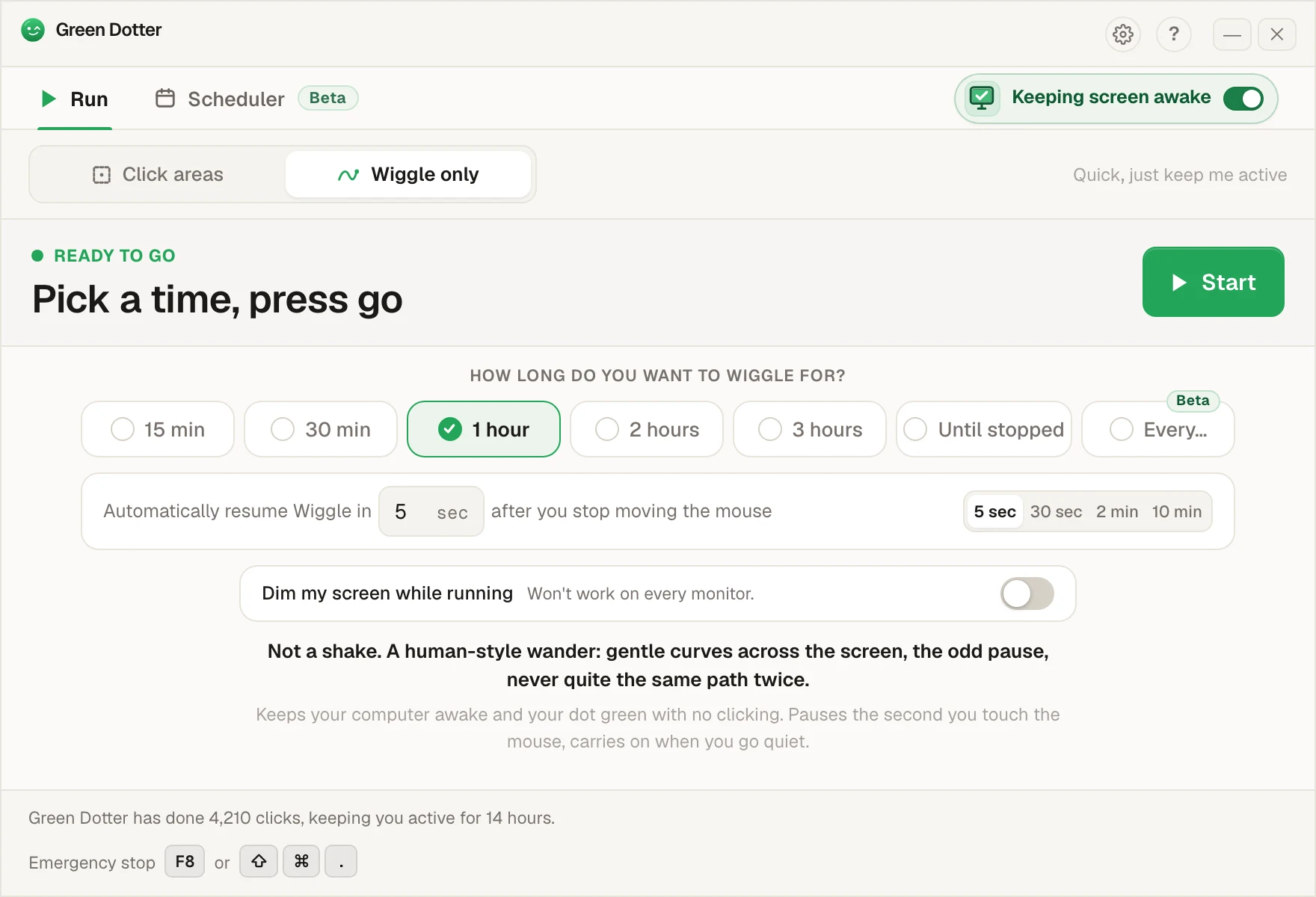
That's what Green Dotter is for. It's my app, and it's free on Mac and Windows. It moves the mouse a little while you're away from it, and it pauses when you touch the mouse. That's the whole idea.
Same story in Slack: how to stop Slack going idle. And if you’re wary of apps that move your mouse, are auto clickers safe? walks through five checks, Green Dotter included.
If you want the longer version, there's how long before Teams shows you as away, how to stop Teams showing you as away and eight ways to keep your Teams status green. The page on keeping Teams status active is the short one. The spoon trick is there if you're curious. Questions about the app go in the FAQ.
And at the end of the day, go offline properly. Appear offline is fine for an hour. Quitting Teams and shutting the laptop is better, and switching off for real matters more than any dot. If you need words for the status while you're away, there are plenty in Microsoft Teams status message ideas.
Want the dot green instead? Download Green Dotter. It's free on Mac and Windows.
FAQ
How do I appear offline on Teams?
Select your profile picture at the top right of Teams, select your current status, then choose Appear offline. You can also type /offline in the search box.
Can I appear offline to just one person on Teams?
No. Microsoft's status page describes Appear offline as a single status and gives no way to choose who sees it. Do not disturb quietens your own notifications, but colleagues still see your normal presence.
How long does Appear offline last?
If you don't set a duration, Microsoft says a manually set Appear offline stays until you change it. Busy and Do not disturb last one day, and any other status lasts seven days.
Will I still get messages and calls if I appear offline?
Chat messages still arrive whatever your presence, and Microsoft says you'll still receive notifications if anyone messages you. Calls come through in every status except Do not disturb, where they go to voicemail.
Why does Teams show me as Away on my phone?
Microsoft says presence on a mobile device becomes Away whenever the Teams app is in the background, and Offline after 24 hours of inactivity.