Stop your Mac dimming, locking, or sleeping in the middle of a long task. This page covers every way to keep your Mac awake — from System Settings to controlled auto clicking. Free download for Apple Silicon and Intel.
Green Dotter is distributed directly from green-dotter.com. This is the official download source for the Green Dotter app. No account, email address or subscription is required.
macOS has power settings designed to save energy and protect your battery when the machine isn't in use. That's sensible most of the time. But idle timers can't tell the difference between "doing nothing" and "reading a long document" or "waiting for a render, download, or backup to finish".
When your Mac sees no keyboard or trackpad activity, it dims the display, locks, then sleeps. Common culprits:
The fix depends on what you're doing and how much control you have over the machine.
If you have full control of your Mac, the built-in settings are the simplest starting point.
Display sleep: go to System Settings → Displays → Advanced and increase the screen sleep timer. Set it to "Never" when plugged in for long sessions.
Battery vs power adapter: System Settings → Battery lets you set different behaviour on battery and on the power adapter. Sleep timers are usually shorter on battery.
Lock Screen: System Settings → Lock Screen controls how long before the screen locks once sleep begins.
Low Power Mode: on laptops this can shorten idle timers — turn it off during long sessions.
Limitation: on managed work Macs your organisation may control these settings, so you may not be able to change them. See the dedicated Mac auto clicker page for a controlled-activity option, or the broader keep your computer awake guide.
macOS ships with a Terminal command called caffeinate. Running it keeps your Mac awake until you stop it, without changing your saved power settings — handy for a one-off long task. It works the same on Apple Silicon and Intel Macs.
If you'd rather not use Terminal, small menu-bar utilities can toggle a keep-awake lock on and off. These are good when you simply need the screen to stay on.
Limitation: these stop the Mac sleeping, but they don't create any activity. If you also need apps like Teams or Slack to keep seeing you as active, a wake-lock alone may not be enough — those rely on input, not just an awake screen. More on that in keeping your computer awake without changing every setting.
A mouse jiggler keeps a Mac awake by moving the cursor a little — enough that the machine doesn't register as idle. Hardware jigglers are USB devices; software jigglers run as apps. Both do the same job.
They work well for basic keep-awake use. The limitation is control: a jiggler moves the pointer but doesn't let you choose where it goes or whether it clicks anything. For a personal Mac that's usually fine. When you want activity confined to a specific, safe part of the screen, it starts to feel blunt.
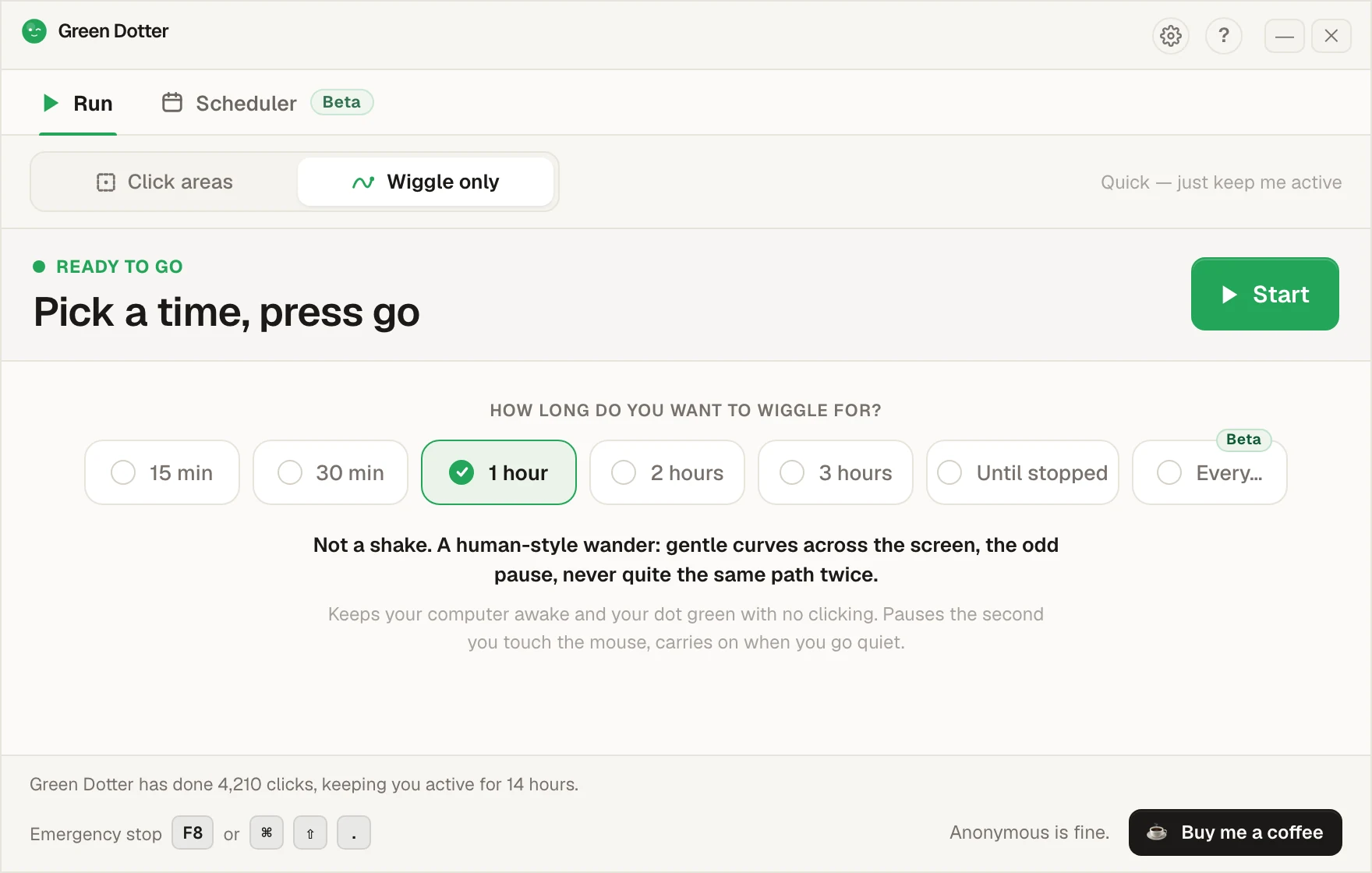
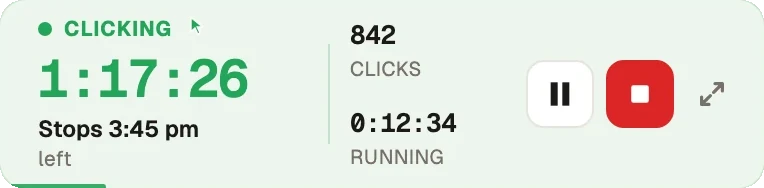
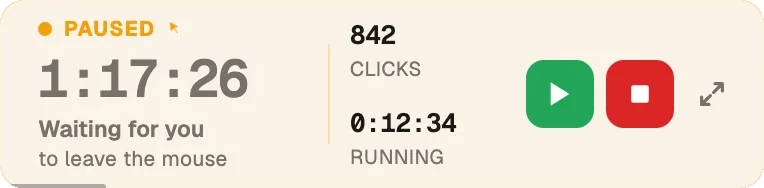
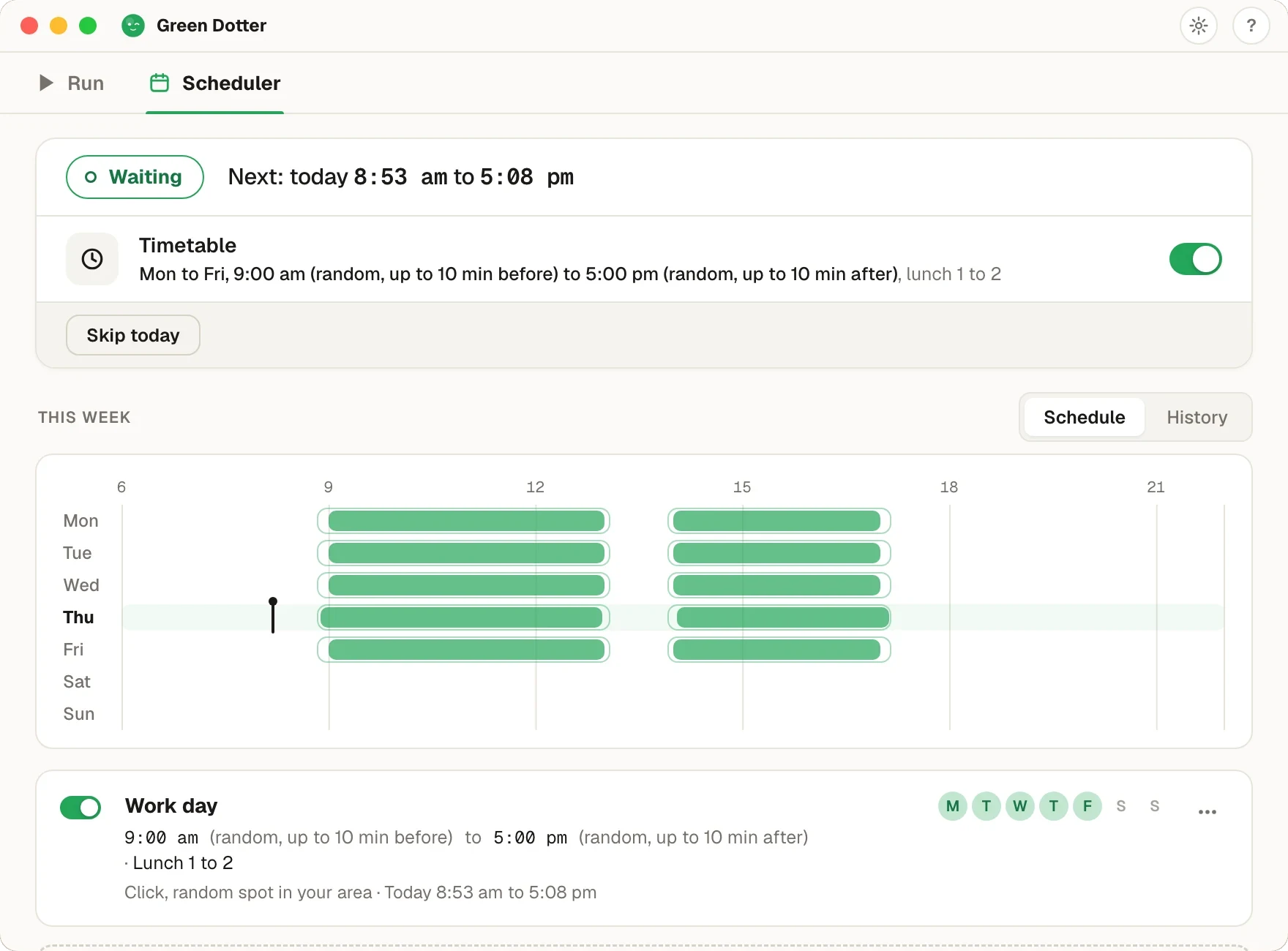
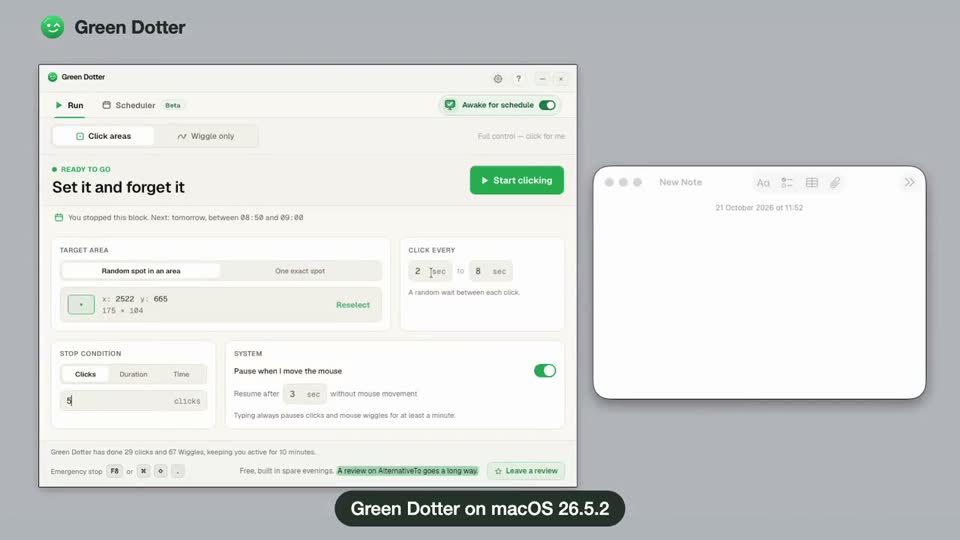
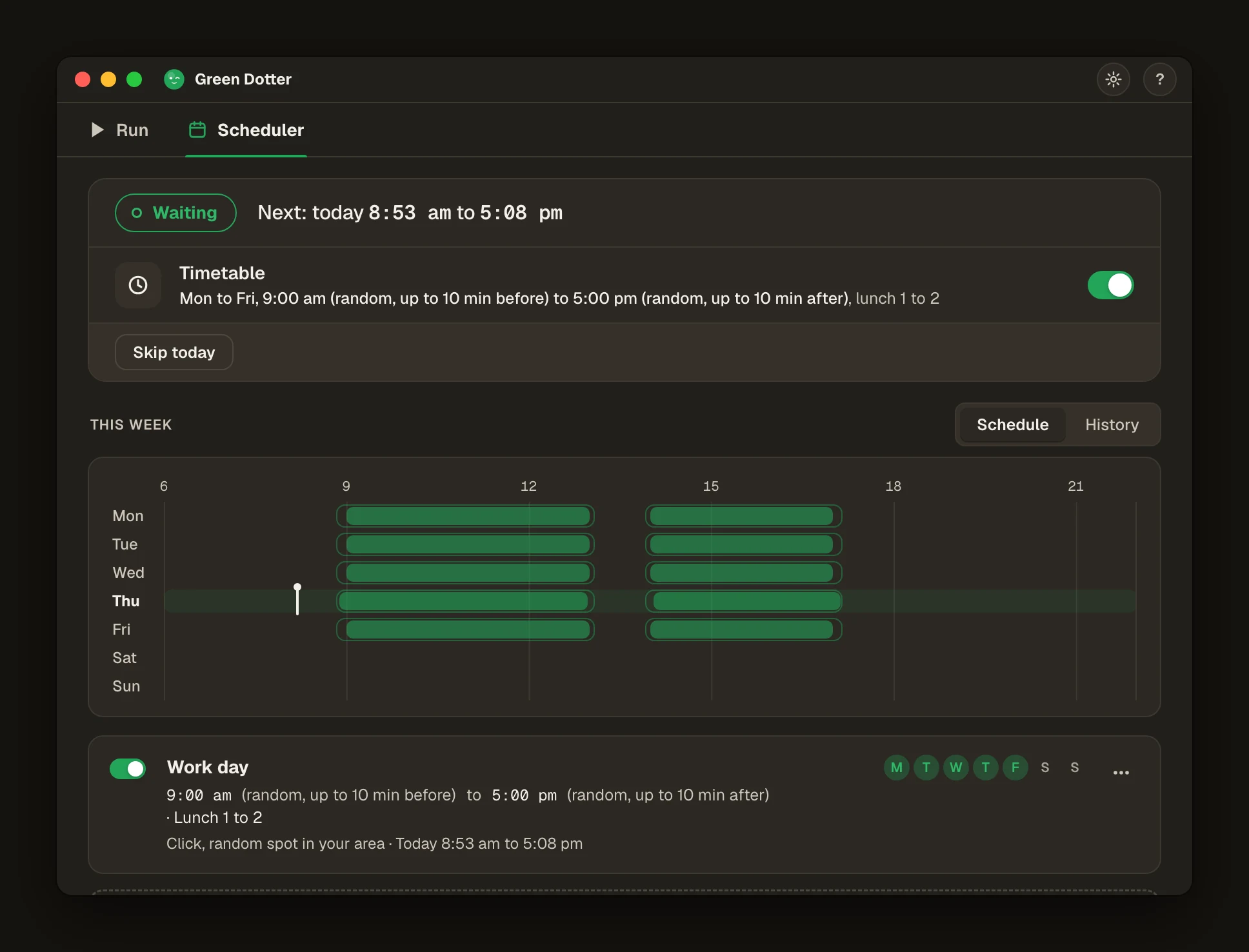
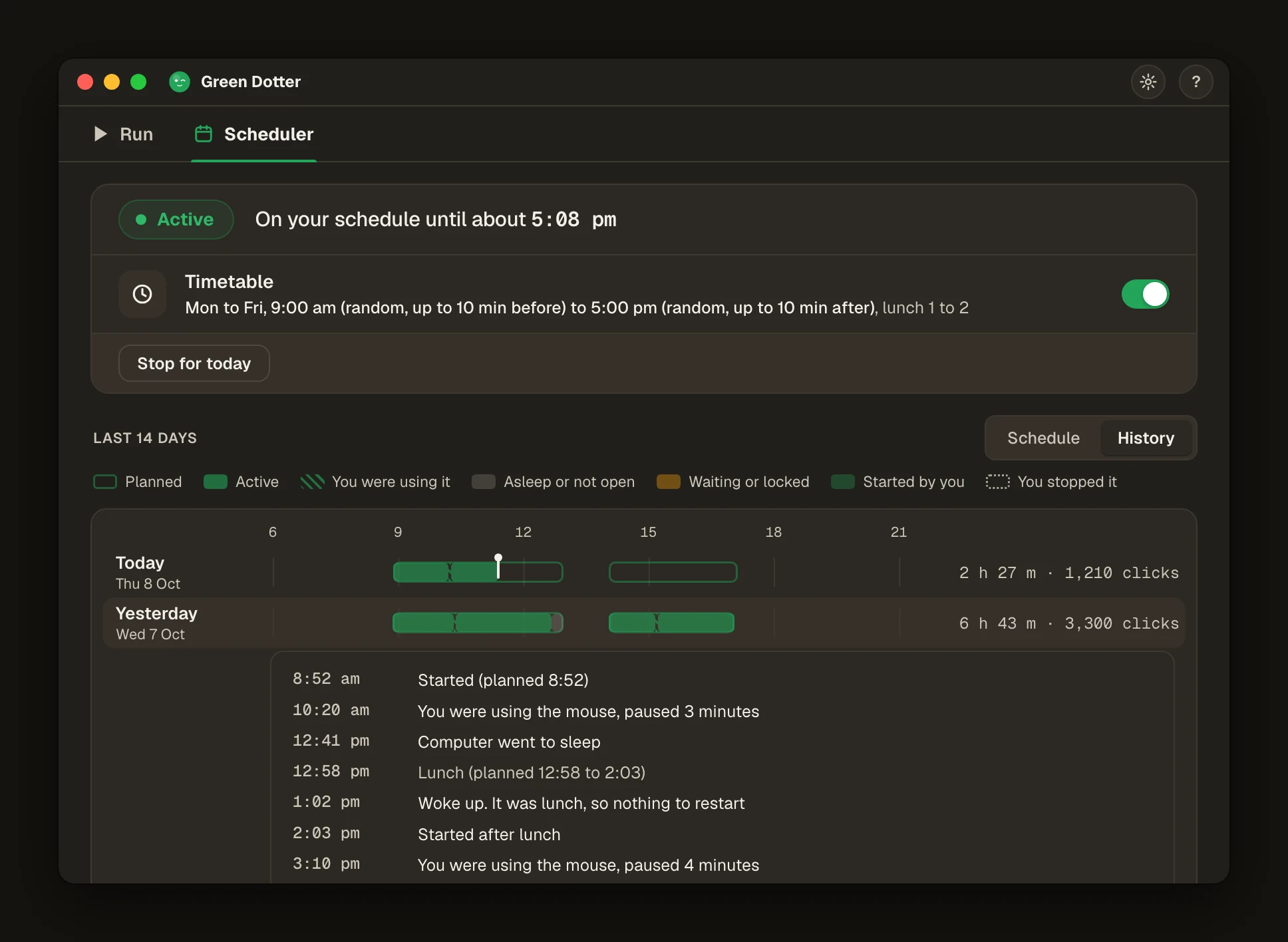
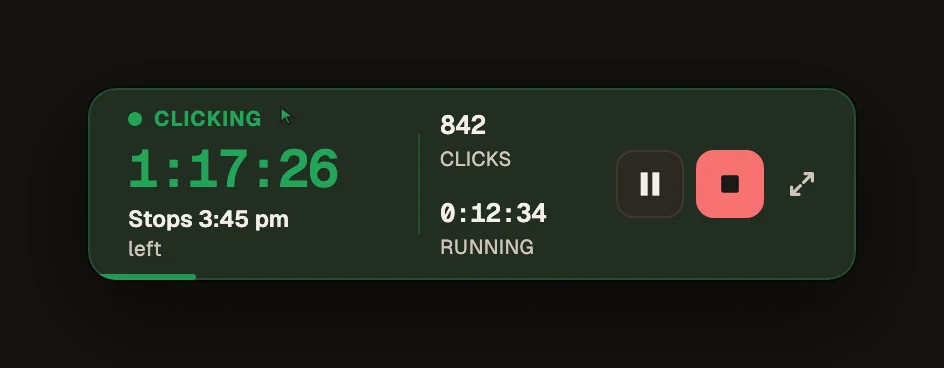
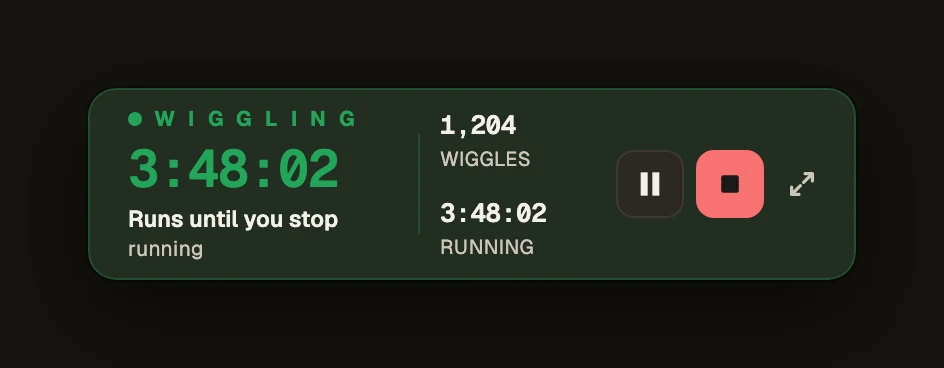
Green Dotter keeps your Mac active by clicking inside an area you choose. You pick a safe area of the screen, and Green Dotter clicks inside it on a randomised schedule. When you come back and move the trackpad or mouse, it pauses automatically and gets out of your way.
Because it generates real activity, it keeps the screen awake and keeps presence-based statuses from drifting to away. Green Dotter is useful when:
It runs natively on Apple Silicon and Intel. It's a local app. No account. No cloud. Free.
| Option | Mac | Windows | Best for |
|---|---|---|---|
| Built-in power settings | Yes | Yes | Simple, permanent sleep control |
| caffeinate / keep-awake app | Yes | No | Temporary Mac wake-lock |
| Mouse jiggler | Yes | Yes | Basic cursor movement |
| Green Dotter | Yes | Yes | Controlled clicks and desktop activity |
If you just need the screen to stay on, start with System Settings or caffeinate. If you need controlled activity in a specific screen area — or want apps to keep seeing you as active — Green Dotter is the better fit.
On organisation-managed Macs, some power and activity settings may be locked. Check what's allowed before changing settings or installing tools. Green Dotter is a local desktop utility that performs clicks inside the area you configure. Use it for legitimate desktop automation and check your workplace policies if you're unsure.
Green Dotter is distributed directly from green-dotter.com. This is the official download source for the Green Dotter app. No account, email address or subscription is required.